.folder), a .nomedia file, or your device's built-in Secure Folder. We cover all three below.
Before You Start: Requirements & Device-Specific Notes
Because Android is highly customizable, the exact steps to hide a folder in Android vary slightly depending on your smartphone manufacturer. However, the underlying file system rules remain the same.
- Samsung Galaxy Users: You have a built-in feature called Samsung Secure Folder. This is highly recommended as it uses Samsung Knox hardware encryption.
- Google Pixel Users: You have Safe Folder built directly into the Files by Google app.
- Motorola, OnePlus, & Xiaomi: Most include a "Hidden Cabinet" or "Private Safe." If yours doesn't, the native
.nomediafile trick (covered below) will work flawlessly. - SD Card Storage: If you are looking for how to hide files on SD card Android, the native folder-renaming methods work exactly the same on external storage as they do on internal storage.
Method 1: How to Hide Files on Android — Without an App
If you don't want to install new software, you can manipulate Android's native media scanner. There are two primary ways to do this natively.
Option A: The .nomedia File Trick Explained
This is the oldest and most reliable trick for hiding files from gallery Android apps. When the Android system scans your phone for photos, videos, or audio to display in media apps, it skips any folder that contains a blank file literally named .nomedia.

Step 1: Open File Manager
Open the default "My Files" or "Files" app on your Android device.
Step 2: Navigate to the Target Folder
Go to the folder containing the photos or videos you want to hide.
Step 3: Create the File
Tap the menu icon (usually three dots) and select Create new file.
Step 4: Name it strictly .nomedia
Name the file exactly .nomedia (do not forget the period at the beginning, and do not add an extension like .txt).
Option B: Create a Hidden Folder
Similar to the above, any folder that starts with a period is treated as a hidden system folder.
Create a folder named .SecretPhotos and move your sensitive files there. To see them again, you will need to open your File Manager settings and toggle on "Show hidden files."
It is vital to understand that hiding files on Android is not the same as securing them. The
.nomedia trick only hides files from media galleries. Anyone who opens your file manager and turns on "show hidden files" can instantly view, copy, or delete them. There is no password protection involved in this native method.
Which File Hiding Method is Right For You?
Not sure whether to use native tricks or an app lock? Answer this quick question to find out.

Who are you hiding these files from?
Method 2: Use a Dedicated Secure Folder App
For true mobile privacy, simple hiding isn't enough. Of all the options we covered, here is why we recommend Folder Lock for Android for users who need actual encryption and comprehensive device protection.
- ✓ AES 256-bit Encryption: Your photos, videos, and audio files aren't just hidden from the gallery; they are scrambled into an unreadable format that cannot be bypassed by file managers.
- ✓ Intruder Tracking: If a snoop tries to guess your PIN, the app silently captures their photo and logs the unauthorized access attempt.
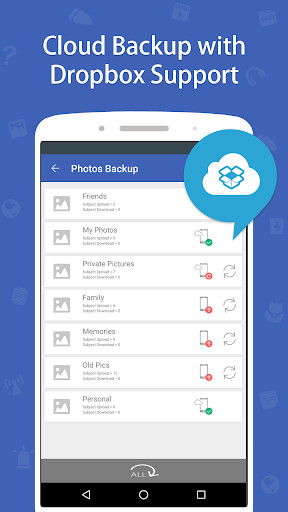
- ✓ Encrypted Cloud Sync: Securely back up your hidden vault to your own Google Drive, Dropbox, or OneDrive. The files remain encrypted during transit and storage.
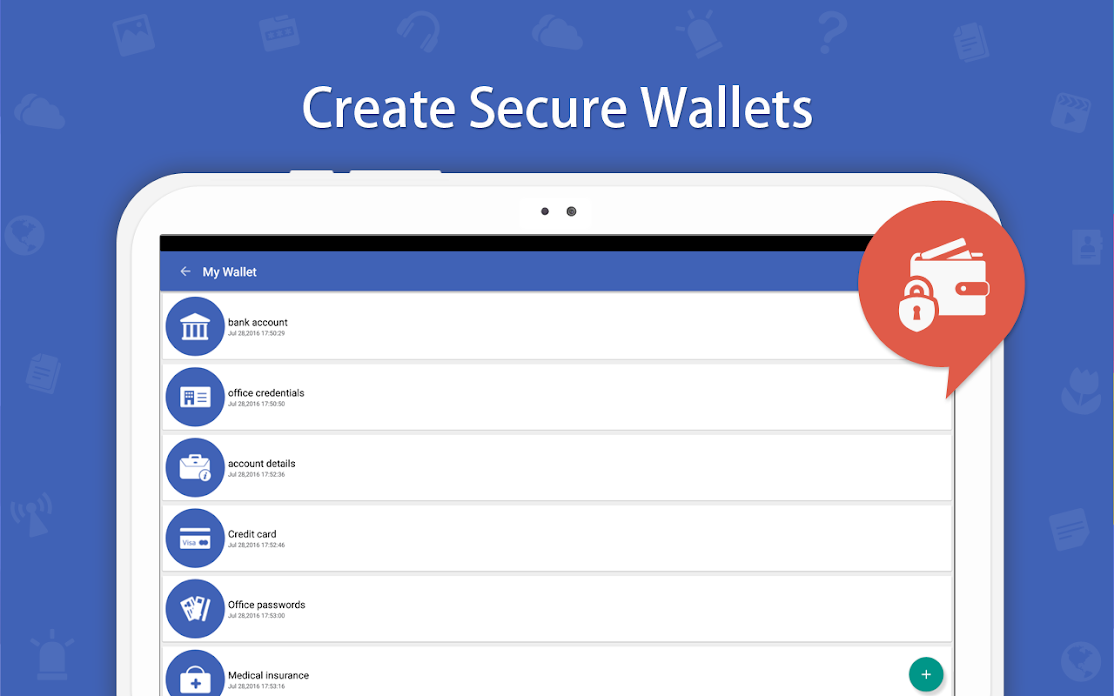
- ✓ Secure Wallets & Notes: Go beyond files. Create encrypted digital wallets for credit cards and bank details, or write private notes that nobody else can read.
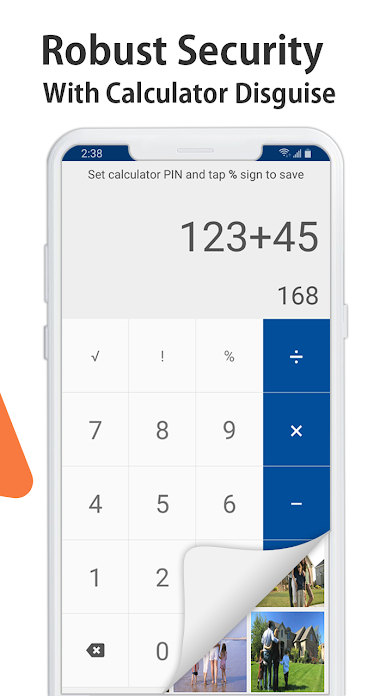
- ✓ Biometric App Lock & Stealth: Lock individual apps (like WhatsApp) with your fingerprint, or disguise Folder Lock entirely using stealth mode.
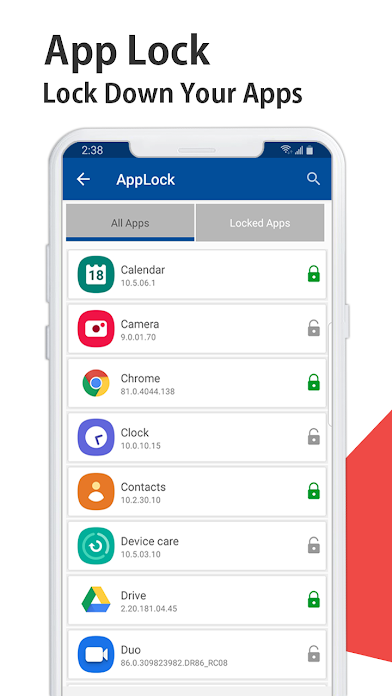
Folder Lock Interface Example
App Lock vs Phone Screen Lock — Which Is Enough?
Understanding the difference between native OS hiding and dedicated locking is crucial for your mobile privacy settings.

| Method | Security Level | Survives Phone Restart? | Best For | Limitations |
|---|---|---|---|---|
| .nomedia Trick | Very Low | Yes | Hiding meme folders from gallery | No password; easily bypassed via File Manager |
| Hidden Folder (.Name) | Low | Yes | Basic organization | Anyone can toggle "Show Hidden Files" |
| Samsung Secure Folder | High | Yes | Samsung device owners | Not available on non-Samsung devices |
| Folder Lock App | Military-Grade | Yes | Maximum privacy across all Androids | Requires downloading third-party software |
Troubleshooting & Recovery Guide
Running into issues with hidden files or a locked app folder on Android? Here are the most common problems and safe, verified solutions.
How to see hidden files on Android if I forgot where I put them?
Open your native File Manager. Tap Settings > Toggle "Show hidden files." Use the built-in search bar to search for terms you know are in the file names, or manually check folders starting with a period.
How to recover access to a locked app if I forgot my PIN?
If you are using an app locker Android solution (like Folder Lock):
- Open the app and deliberately enter the wrong PIN/Pattern to trigger the "Forgot Password" prompt.
- Select "Recover via Email."
- A reset link will be sent to the master email address you registered during setup.
How to remove secure folder locked notification
If you use Android system secure folder, the locked notification is a persistent OS security feature. You cannot fully remove it while the folder is active, but you can minimize it by long-pressing the notification and setting it to "Silent."
Can someone bypass app lock by restarting the phone?
Quality app locks and built-in secure folders load at the OS boot level. Therefore, app lock behavior after a phone restart remains intact. The apps will still require your PIN or biometric authentication immediately upon opening.
Mobile Privacy Settings Audit Checklist
Are your files truly protected? Take this short audit.
Biometric vs PIN vs Pattern App Locking Comparison
When you move beyond hiding files to actually locking them, you must choose an authentication method. Which is more secure for how to hide files on Android?
- Biometric App Lock (Fingerprint/Face): Highly convenient and immune to "shoulder surfing" (someone watching you type). Recommended for frequent access to private folder mobile apps.
- PIN: Highly secure if it differs from your phone's main unlock PIN. Never use the same PIN for your secure folder app and your lock screen.
- Pattern: The least secure. Finger smudges on the glass often reveal the pattern to thieves.
Protecting Financial Apps Specifically
While hiding photos is common, applying an app lock to your email and financial apps is arguably more important. If a thief grabs your unlocked phone, they can open your email, trigger password resets for your bank, and access funds. Using software like Folder Lock to lock apps on phone interfaces ensures a secondary wall of defense.
Beyond Files: Securing Notes, Wallets, and Browsing
Native Android hiding tricks are limited solely to physical files like JPEGs or PDFs. But what about a great idea you jotted down, your ATM PIN, or the websites you visit? Premium security tools address these blind spots by offering built-in secure digital wallets and encrypted note-taking features. Furthermore, apps like Folder Lock include a dedicated incognito browser that leaves absolutely zero trace of your web history, cookies, or cache on the device once you exit.
Frequently Asked Questions
How to hide files on Android without an app?
You can hide files by placing them in a folder that starts with a period (e.g., .Hidden) or by creating an empty text file named .nomedia inside any existing folder using your default File Manager.
Is hiding files on Android the same as securing them?
No. Hiding a file via the .nomedia trick only removes it from gallery apps. Anyone browsing the file system can still access, copy, or delete the file without a password. To secure a file, you must encrypt it using a secure folder app.
How does fingerprint app locking work?
Fingerprint app locking integrates with your Android device's native biometric API. When you tap a locked app, the app locker intercepts the launch and requests authentication from the OS before rendering the app's interface.
Can I back up my hidden or encrypted files to the cloud?
If you use native Android hiding tricks, those files may not sync properly with standard cloud backups. However, dedicated apps like Folder Lock allow you to link your Google Drive, Dropbox, or OneDrive. The app encrypts your data locally on your phone first, and then pushes that unreadable, secure file to your cloud storage.
How can I tell if someone tried to look at my hidden files?
Native Android tools do not offer logging. To catch snoops, you need an app locker with "Hack Attempt Monitoring." This feature uses your front-facing camera to snap a silent photo of anyone who enters the wrong PIN or password into your vault.
Can i lock a folder on android?
Yes. While native Android doesn't allow you to password-protect standard file manager folders directly, you can use built-in tools like Samsung Secure Folder, Google Photos Locked Folder, or third-party encryption tools like Folder Lock to achieve this.
How to access locked folder google photos on android?
Open Google Photos, tap 'Library' at the bottom, then 'Utilities', and scroll down to 'Locked Folder'. You will be prompted to enter your device PIN or biometric to access the hidden photos.
The Bottom Line
The native Android tools are great for keeping your camera roll organized. But if you want true peace of mind against device theft or targeted snooping, you need genuine encryption. We recommend Folder Lock for securing your most critical data.